

As of NativeScript 9, we can now use Vite as our build tool. In particular, the Vite development server with hot module replacement (HMR) serves your app as native ES modules over HTTP, so devices and simulators load modules by URL allowing Vite to apply fast, precise HMR updates, making it an excellent choice for modern development. In this blog post, we'll explore how to set up Vite with NativeScript and leverage its features for a seamless development experience.
Switch project to use Vite
You can switch an existing NativeScript project to use Vite in 3 easy steps.
Step 1: Install the Vite plugin
npm install --save-dev @nativescript/viteStep 2: Enable Vite in nativescript.config.ts
Update your nativescript.config.ts as follows:
export default {
  // ...
  bundler: 'vite',
  bundlerConfigPath: 'vite.config.ts',
} as NativeScriptConfig;
Step 3: init @nativescript/vite
Run the following command to initialize the Vite configuration in your project:
npx nativescript-vite init
npm install
This command will create a vite.config.ts file in the root of your project with the necessary configuration along with other helpful things like adding HMR development scripts to your package.json.
You can now develop your app as normal with ns debug ios --no-hmr or ns debug android --no-hmr with standard app reload, or use the new HMR-enabled scripts added to your package.json. Let's explore using HMR with Vite next!
Explore HMR with Vite
With Vite set up, you can now take advantage of advanced hot module replacement (HMR) during development. Start your app with the following command:
npm run dev:ios
# or
npm run dev:android
These commands start 2 parallel processes at once. The first process starts the Vite development server with vite serve, and the second process starts the NativeScript CLI which uses Vite to build the app with an HMR client embedded. When the app launches on the target platform device, the hmr client in the app connects and listens for updates from the Vite development server.
You'll notice on first app launch using HMR with Vite that you will very briefly see a placeholder screen that looks like this:
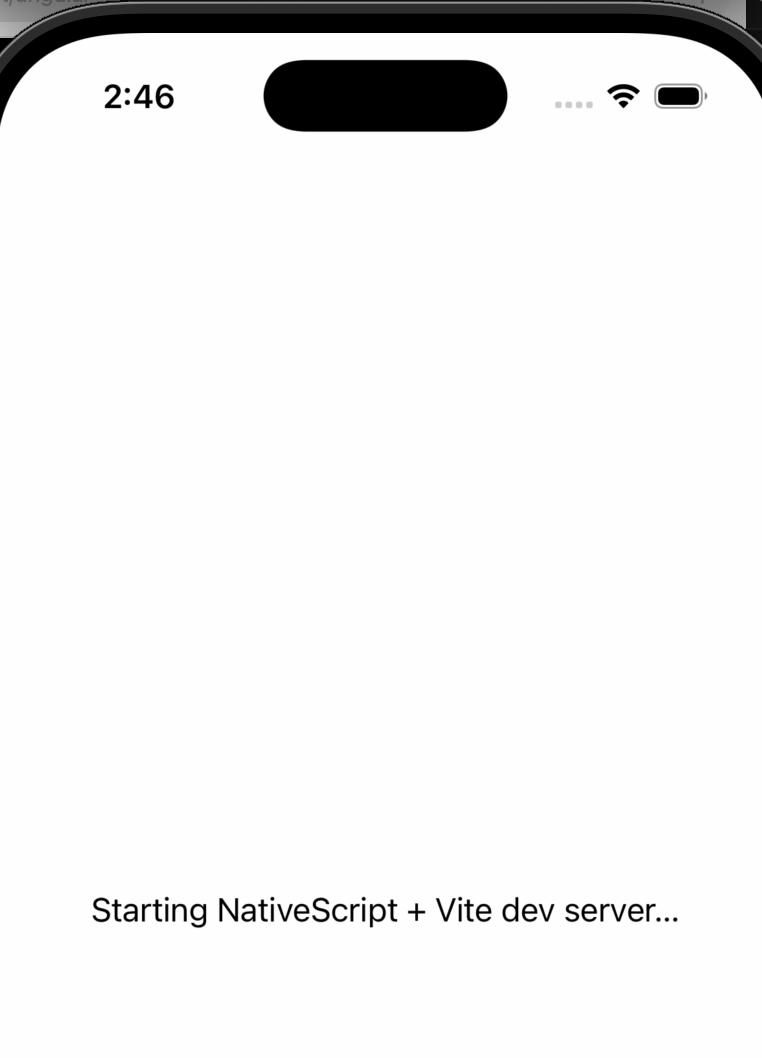
It's at this moment that the app is connecting to the Vite development server to load the app's modules over HTTP. After this initial connection, the app will then boot as normal and subsequently dynamically load updated modules over HTTP as you make changes to your code.
This is exactly how HMR works in a web browser, yet we can now do this for native iOS, Android and visionOS development!
Enabling custom HMR with onHmrUpdate
Some cases in your app may benefit from using the onHmrUpdate API to customize how HMR updates are applied. For example, you may want to preserve some state in your app when a module is updated or you want to reset a view which may typically be handled during NativeScript's lifecycle like the loaded event which may not be re-triggered during an HMR update.
This project demonstrates exactly such a case where we want to update the TabView's iosBottomAccessory on numerous HMR updates. We can use the onHmrUpdate API to listen for updates to the module and re-apply the iosBottomAccessory after each update.
The onHmrUpdate API is documented here.
Persisting instance across HMR updates
A common pattern is to store the data or instance on i
Given HMR is just for local development here, you could also store it on global and update it on module re-evaluation by swapping its prototype. With Vite HMR (especially in NativeScript where modules are fetched/updated over HTTP and re-executed), re-evaluating a module re-runs its top-level code.
If you did the "normal" thing:
export const tabCustomizer = new TabCustomizer();...then every HMR update would create a new instance.
But lots of places in your NativeScript app would end up holding onto the old instance identity:
- event handlers
- callbacks you previously registered (JS-side or bridged to native)
- timers, listeners, loaded handlers, onHmrUpdate handlers that captured the old instance native objects that indirectly keep JS objects alive
Those references don't magically retarget to your newly-created instance. So you would get common HMR bugs: "why is my updated method not running?", "why did it attach twice?", "why is state inconsistent?", etc.
Putting the instance on global makes the instance survive module replacement, so existing runtime references keep pointing at the same object.
Why swapping the prototype works?
When you update code, the class TabCustomizer { ... } definition is replaced, which creates a new TabCustomizer.prototype object containing the new method implementations.
Existing instances created before the update still have their internal [[Prototype]] pointing at the old prototype, so method lookup continues to find the old functions.
This line fixes that:
Object.setPrototypeOf(existing, TabCustomizer.prototype);Because JavaScript method dispatch works like:
- look for existing.resetAccessory on the object itself
- if not found, walk up existing.[[Prototype]] and use the function found there
By changing [[Prototype]], you make the old instance "see" the new methods without changing the instance identity or losing its current state (tabView, flags, timers, etc).
Handling CommonJS plugins
Vite is optimized for native ES modules, but many existing plugins are still written in CommonJS. To use CommonJS plugins with Vite in your NativeScript project, there are a couple of approaches you can take.
Example 1: Using resolve alias
Let's take the example of dayjs which would result in an error like this if you installed and used within your project:
vite v7.3.0 building client environment for development...

watching for file changes...

build started...
transforming...
✓ 845 modules transformed.
Vite build completed! Files copied to native platform.
tools.ts (3:7): "default" is not exported by "node_modules/dayjs/dayjs.min.js", imported by "tools.ts".
file: project/src/tools.ts:3:7

3: import dayjs from "dayjs";
          ^
This particular library offers an ES module build that we can point to instead. We can add a resolve alias in our vite.config.ts like this:
export default defineConfig(({ mode }: { mode: string }): UserConfig => {
  return mergeConfig(vueConfig({ mode }), {
    resolve: {
      alias: [
        // Force dayjs to ESM to avoid UMD default export issues
        { find: /^dayjs$/, replacement: "dayjs/esm/index.js" },
        { find: /^dayjs\/plugin\//, replacement: "dayjs/esm/plugin/" },
        { find: /^dayjs\/locale\//, replacement: "dayjs/esm/locale/" },
      ],
    },
  });
});
The project now builds successfully with Vite!
Example 2: Adding a compatibility plugin
Let's look at another example with chroma-js version v2 which didn't support es modules. (Note: chroma-js v3 does support es modules so this is just an example)
Your usage may be like this:
import chroma from "chroma-js";

const r = chroma("red");
console.log("r:", r.hex()); // r: #ff0000
You would encounter an error like this:
utils.ts (15:7): "default" is not exported by "node_modules/chroma-js/chroma.js", imported by "src/utils.ts".
file: project/src/utils.ts:15:7

14:
15: import chroma from "chroma-js";
           ^
16:
17: const r = chroma('red');
We can fix it by adding a small Vite plugin that:
- intercepts
import "chroma-js" - rewrites it to a virtual module that returns a stable, callable default export
In vite.config.ts:
const VIRTUAL_CHROMA_ID = "virtual:chroma-js-compat";
const RESOLVED_VIRTUAL_CHROMA_ID = `\0${VIRTUAL_CHROMA_ID}`;

const chromaPlugin = {
  name: "chroma-js-compat",
  enforce: "pre",

  resolveId(id: string, importer?: string) {
    if (id === "chroma-js") {
      // IMPORTANT (see “Why the importer check matters” below)
      if (importer === RESOLVED_VIRTUAL_CHROMA_ID) {
        return null;
      }
      return RESOLVED_VIRTUAL_CHROMA_ID;
    }
    return null;
  },

  load(id: string) {
    if (id === RESOLVED_VIRTUAL_CHROMA_ID) {
      return `
import * as chromaNs from 'chroma-js';
const __defaultKey = 'default';
const __cjsKey = 'module.exports';
const __requireKey = '__require';

// Prefer Vite/Rollup’s CJS wrapper convention when present.
// In this pipeline chromaNs.__require() returns the true CommonJS module.exports
// which for chroma-js is the callable chroma() function.
const chroma =
  (chromaNs && typeof chromaNs[__requireKey] === 'function' && chromaNs[__requireKey]()) ||
  (chromaNs && chromaNs[__defaultKey]) ||
  (chromaNs && chromaNs[__cjsKey]) ||
  chromaNs;

export default chroma;
`;
    }
    return null;
  },
};
Why this happens
[email protected] declares:
"type": "commonjs""main": "chroma.js"
So node_modules/chroma-js/chroma.js is CommonJS (module.exports = function chroma(...) { ... }).
When Vite (Rollup) bundles CJS for an ESM build, it must create an interop wrapper. Depending on the pipeline/plugins, you may not get a real ESM default export for that module. That leads to errors like:
- Build-time:
"default" is not exported by ...(when you tryimport x from '.../chroma.js') - Runtime:
TypeError: chroma is not a function(when your “default import” is actually an object)
The vite bundled output represents the CJS module as a namespace-like object that exposes a __require() function which returns the CJS module.exports value.
Why the \0 prefix is used
\0 marks the module id as “virtual/internal” to Rollup. It prevents normal path resolution rules from applying and avoids other plugins treating it like a real file path.
Why the importer check is needed
if (importer === RESOLVED_VIRTUAL_CHROMA_ID) {
  return null;
}
This is required to prevent virtual-module recursion.
Without it:
- App code imports
"chroma-js"→resolveIdredirects tovirtual:chroma-js-compat✅ - The virtual module itself contains
import * as chromaNs from 'chroma-js' - That import also matches
id === "chroma-js" - So
resolveIdredirects again to the same virtual module
Result: the virtual module ends up importing itself (directly or indirectly). That typically shows up as:
- TDZ / init order issues like
ReferenceError: Cannot access 'X' before initialization - or other circular dependency/runtime weirdness
By returning null when the importer is the virtual module itself, we tell Vite/Rollup:
- "Do not redirect this import—resolve the real
chroma-jspackage normally."
That breaks the cycle and allows the wrapper to actually access the real CJS module.
Why use __require()
In this specific bundle pipeline, Vite represents the CJS module using a wrapper object that includes:
__require: function () { return module.exports; }
So:
chromaNs.__require()returns the actualmodule.exports- for
chroma-js,module.exportsis the callable functionchroma(...)
If you skip that and just export chromaNs, you export an object instead of a function → TypeError: chroma is not a function.
Why optimizeDeps.include is needed
optimizeDeps.include: ["chroma-js"]is kept to make dev-server dependency optimization/prefetching more predictable.
This pattern generalizes: any CJS library that needs to behave like an ESM default export can be wrapped this way.
Example 3: Compat plugin with polyfill handling
The last CommonJS plugin example we can look at is base64-url which depends on Node.js built-in modules like buffer that aren't available in NativeScript runtime environments.
The plugin can be made to work like Example 2 as follows but we need to consider a polyfill for buffer as well.
First, in vite.config.ts as we did before, we can add a plugin to handle the CommonJS default export:
export default defineConfig(({ mode }: { mode: string }): UserConfig => {

  const VIRTUAL_BASE64URL = "virtual:base64-url-compat";
  const RESOLVED_VIRTUAL_BASE64URL_ID = `\0${VIRTUAL_BASE64URL}`;

  const base64urlPlugin = {
    name: "base64-url-compat",
    enforce: "pre",
    resolveId(id: string, importer?: string) {
      if (id === "base64-url") {
        if (importer === RESOLVED_VIRTUAL_BASE64URL_ID) {
          return null;
        }
        return RESOLVED_VIRTUAL_BASE64URL_ID;
      }
      return null;
    },
    load(id: string) {
      if (id === RESOLVED_VIRTUAL_BASE64URL_ID) {
        return `
import * as base64Mod from 'base64-url';
const __defaultKey = 'default';
const __cjsKey = 'module.exports';
const __requireKey = '__require';
const base64url =
  (base64Mod && typeof base64Mod[__requireKey] === 'function' && base64Mod[__requireKey]()) ||
  (base64Mod && base64Mod[__defaultKey]) ||
  (base64Mod && base64Mod[__cjsKey]) ||
  base64Mod;
export default base64url;
`;
      }
      return null;
    },
  };
  return mergeConfig(vueConfig({ mode }), {
    plugins: [base64urlPlugin],
    optimizeDeps: {
      include: ["base64-url"],
    },
  });
});
Adding buffer polyfill
Next, we need to add a polyfill for buffer. We can use the buffer npm package for this purpose.
First, install the buffer package:
npm install buffer --save-devWe can now add a src/polyfills.ts file if the project doesn't already have one and add the following code to polyfill buffer:
import * as bufferNs from "buffer";

const globalAny = globalThis as any;

// In this Vite/Rollup pipeline, CommonJS deps are exposed as a wrapper object with `__require()` which returns the real `module.exports`.
const __requireKey = "__require";
const bufferExports =
  bufferNs && typeof (bufferNs as any)[__requireKey] === "function"
    ? (bufferNs as any)[__requireKey]()
    : bufferNs;

const BufferCtor =
  (bufferExports as any).Buffer ||
  ((bufferExports as any).default && (bufferExports as any).default.Buffer) ||
  (bufferExports as any).default ||
  bufferExports;

if (!globalAny.Buffer || typeof globalAny.Buffer.from !== "function") {
  globalAny.Buffer = BufferCtor;
}
Finally, ensure that this polyfill file is imported at the entry point of your application (e.g., main.ts or app.ts):
import "./polyfills";We can now use the base64-url package in our NativeScript project using Vite without issues!
Conclusion
Vite brings a modern, fast development experience to NativeScript projects with its powerful HMR capabilities and optimized builds. By following the steps outlined in this post, you can easily set up Vite in your NativeScript project and take advantage of its features. Additionally, with the strategies provided for handling CommonJS plugins, you can ensure compatibility with a wide range of libraries. Happy coding with Vite and NativeScript!